
Guide for nurses
How to join EmergencyEcho as a nurse
Create your account, then send your NMCN licence for review. Once it is approved you can start taking patient cases. Each step shows the screen you will see.
- Sign-up takes about 10 minutes
- Then two checks before you take cases
- Have your licence documents ready
Have these ready before you start
- Your NMCN licence number, e.g. RN/220149 (or RM/ for midwives)
- Your NMCN nursing licence
- Your nursing degree or certificate, e.g. BNSc or RN
Photos or PDFs both work. Make sure every word and stamp can be read.
Step 1: Open the website and tap Get started
Go to www.emergencyecho.org in your phone's browser and tap the red Get started button.
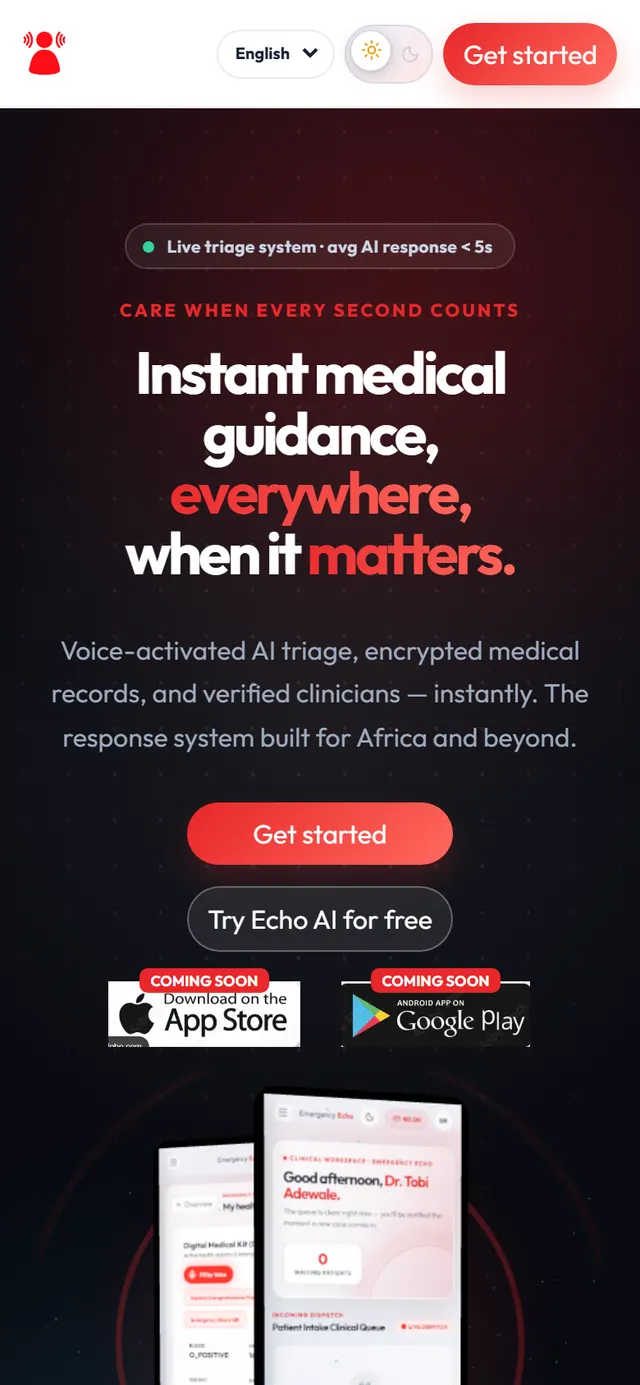
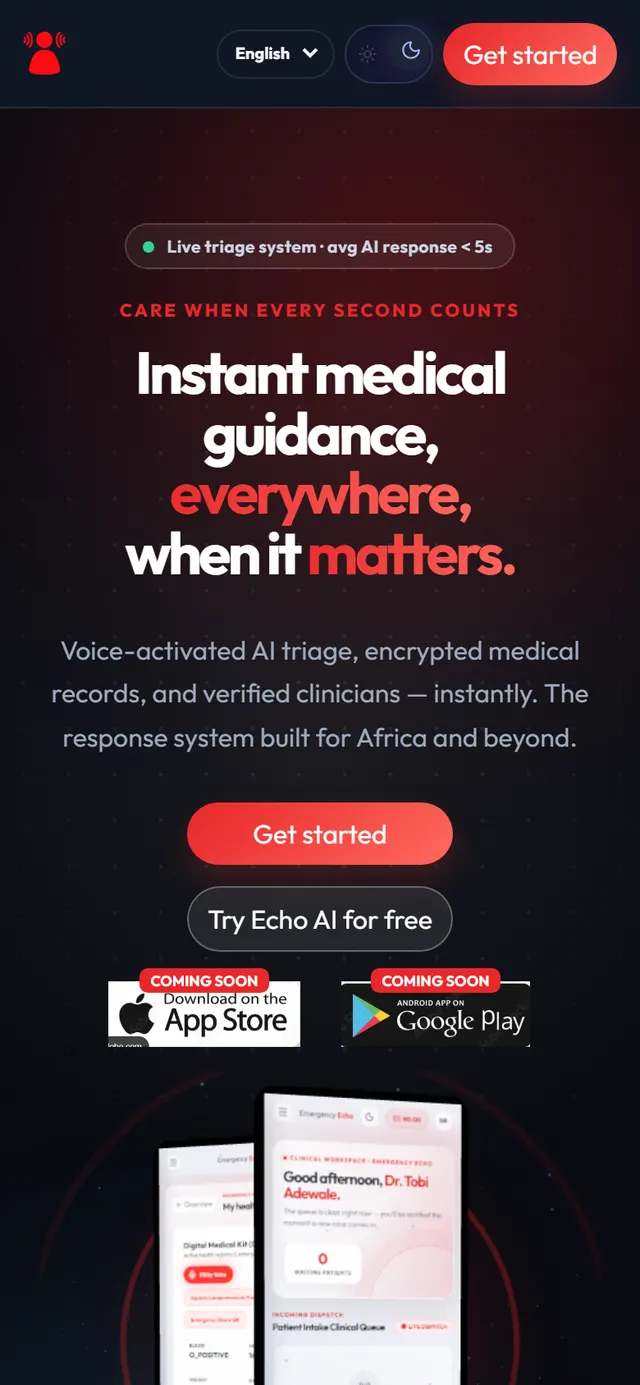
The EmergencyEcho home page Step 2: Fill in the form and choose Nurse
- Full name exactly as it appears on your NMCN licence, so the reviewers can match it.
- Username, phone number (080… or +234…) and an email address you can open now.
- Password with at least 10 characters, including a capital letter, a small letter, a number and a symbol such as # or !.
- Under Select Portal Role, tap NURSE. The note below it says your licence must be checked first.
Tick the box to agree to the Terms and Privacy Policy, then tap Create Account.
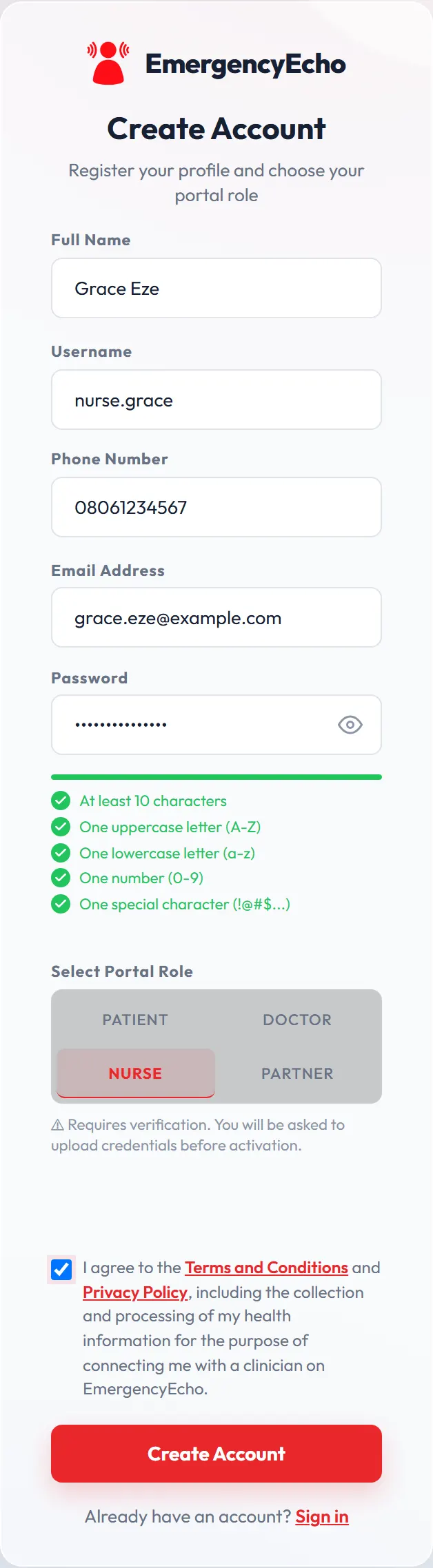
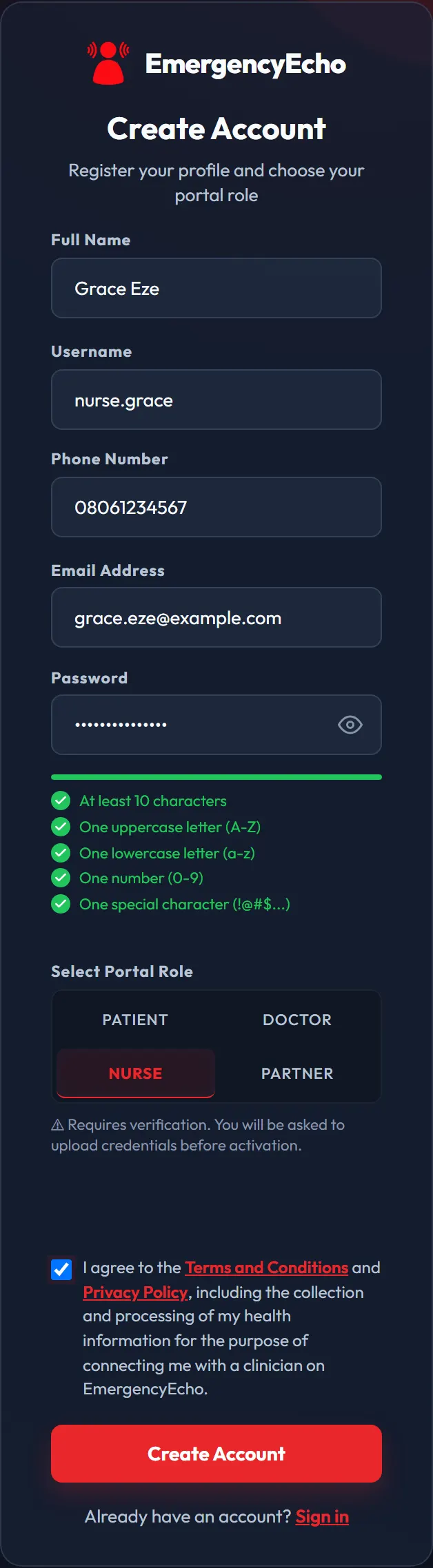
A completed sign-up formScroll inside the screen to see all of it. Step 3: Get your code from the welcome email
Look for “Welcome to EmergencyEcho — verify your email”. It shows your role as Nurse / Clinician and a 6-digit code that works for 24 hours.
Can't find it? Check Spam or Promotions. If it still isn't there, tap Resend Code on the verification page.
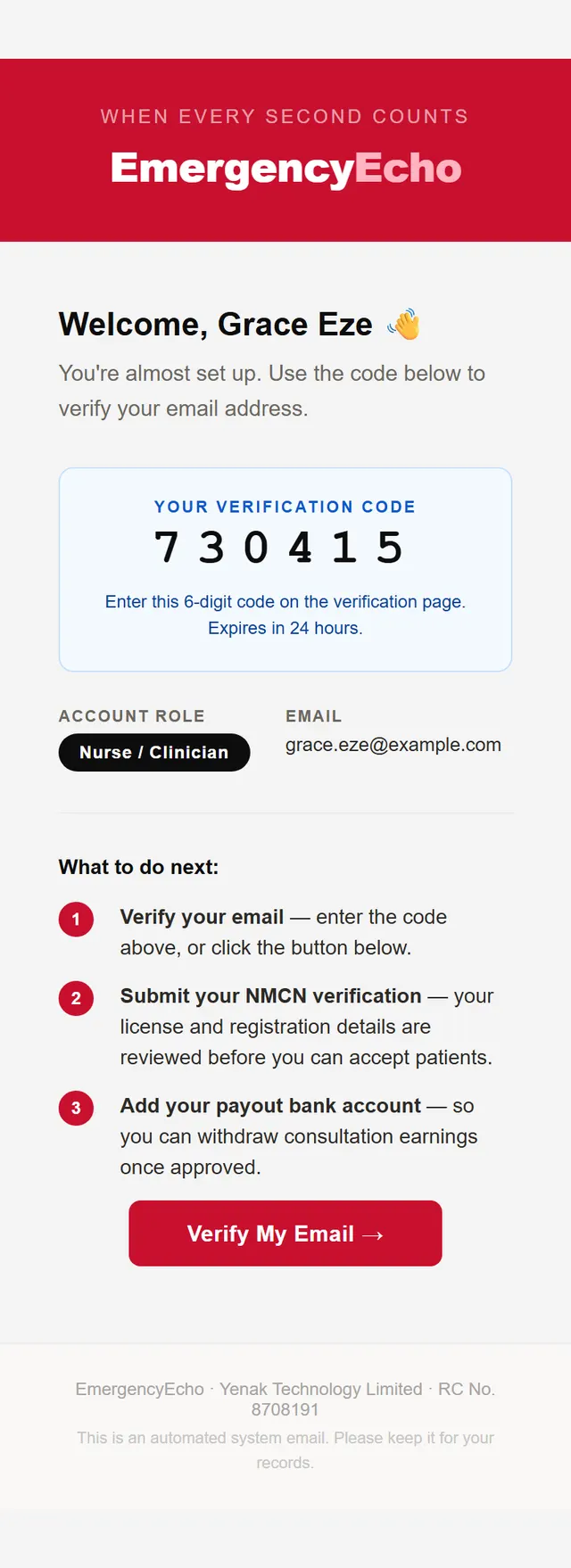
The welcome email, with a sample codeScroll inside the screen to see all of it. Step 4: Enter the code
On the Email Verification page, type the 6 digits and tap Verify Email. Tapping Verify My Email in the email works too.
After Email Verified Successfully, the page takes you to sign-in by itself.
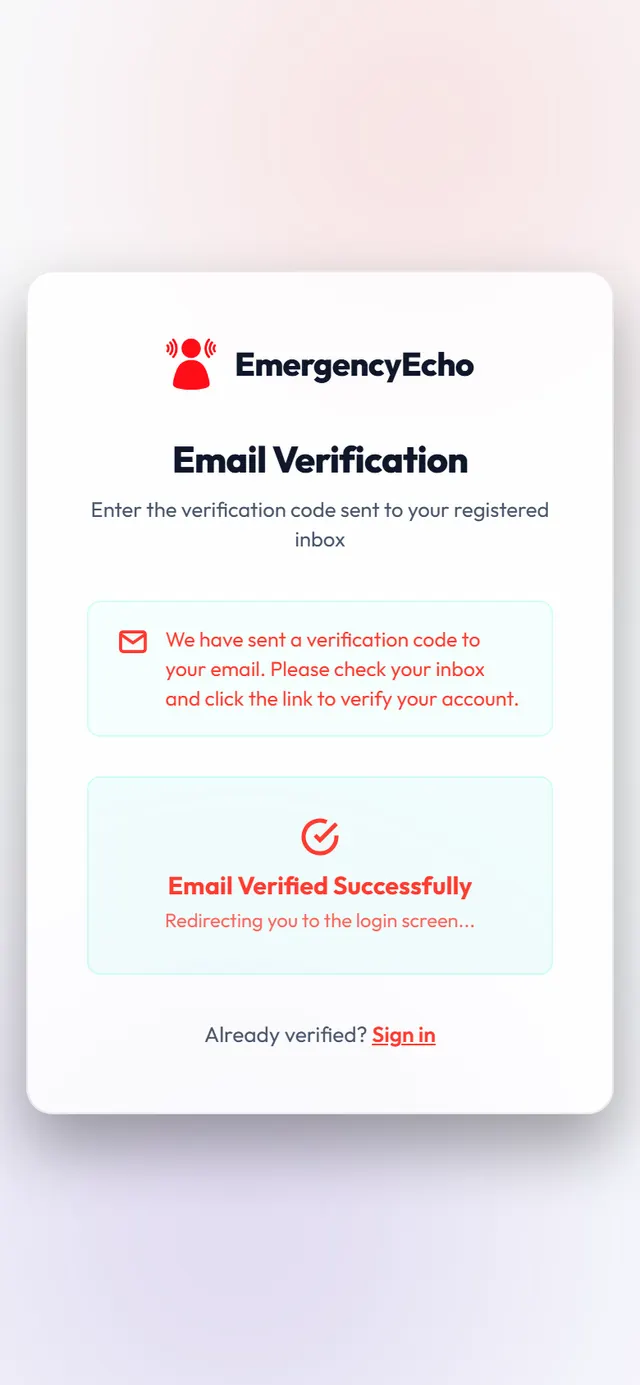
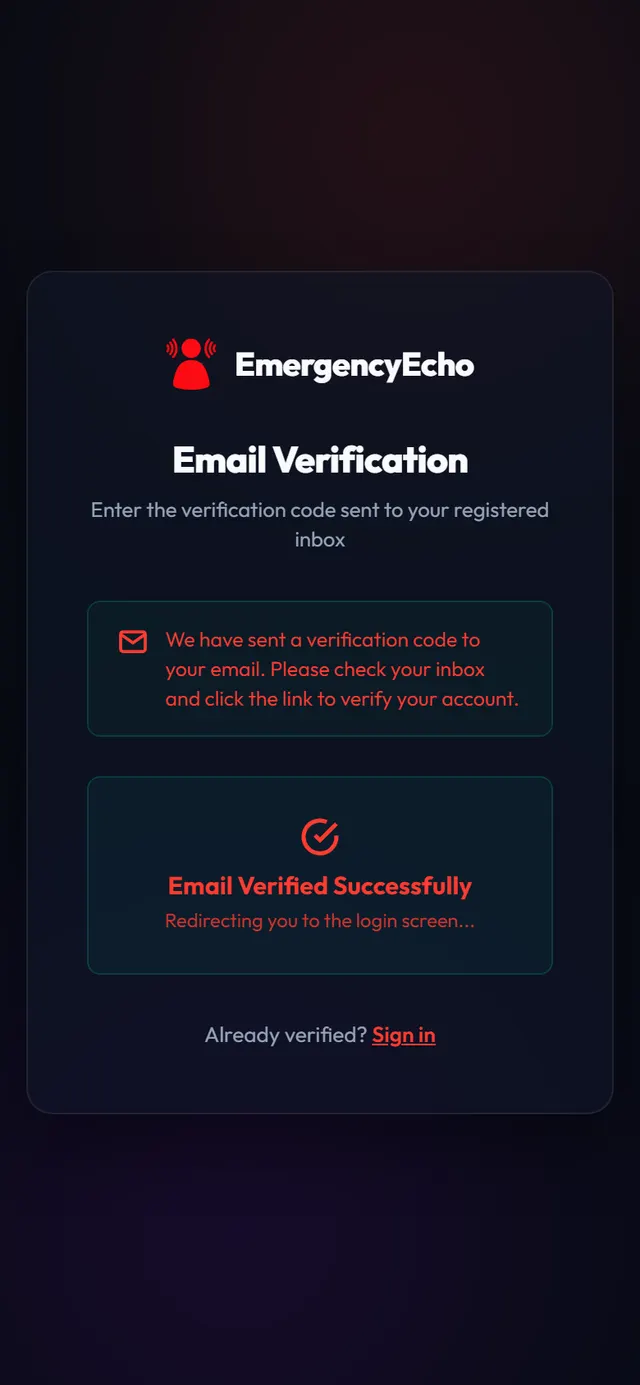
Your email is confirmed Step 5: Sign in
Enter your email or username and your password, then tap Sign In.
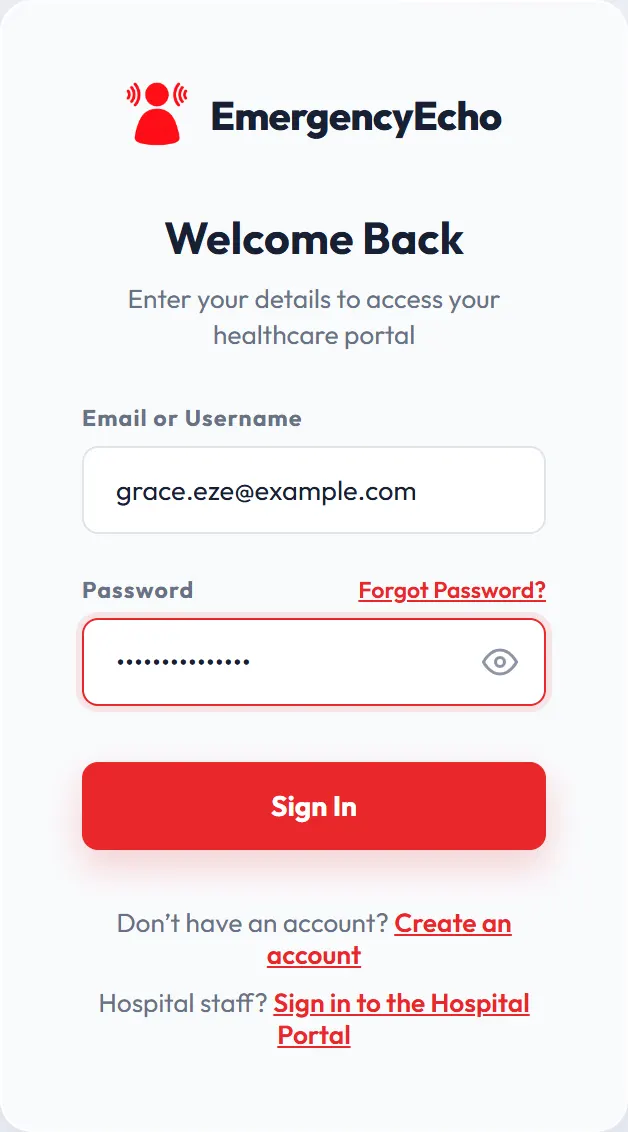
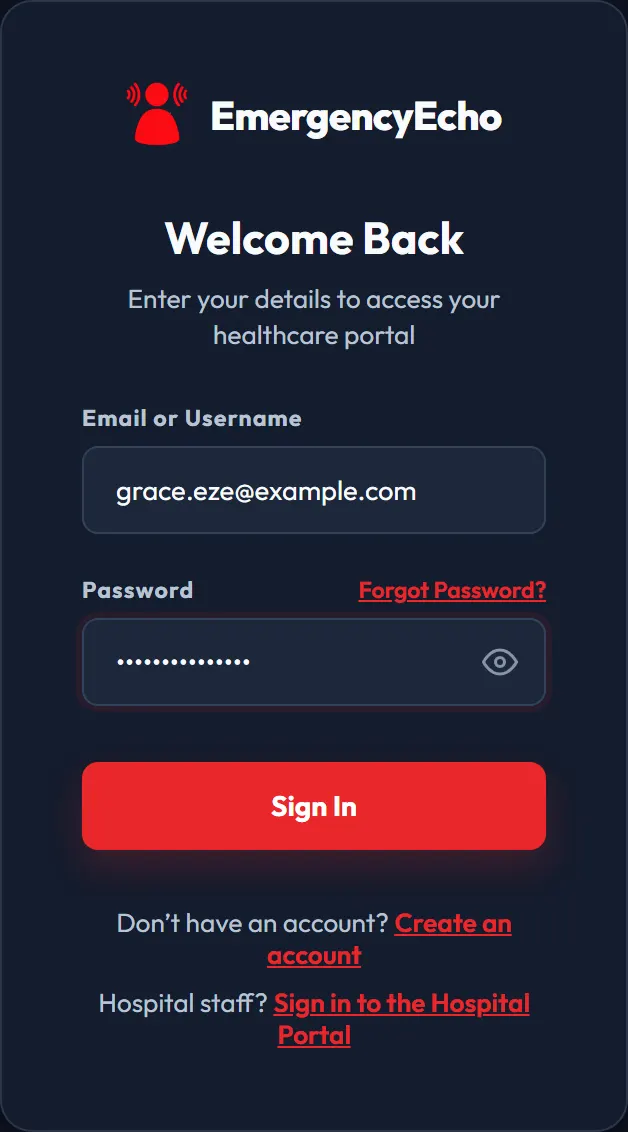
The sign-in screen Step 6: Tap Complete Verification
You land on your clinical workspace. The patient queue shows Queue locked — verification required until your licence is checked.
Tap Complete Verification to open the licence form.
Were you given a founding access code? Type it into “Have a founding access code?” and tap Redeem for priority access to cases.
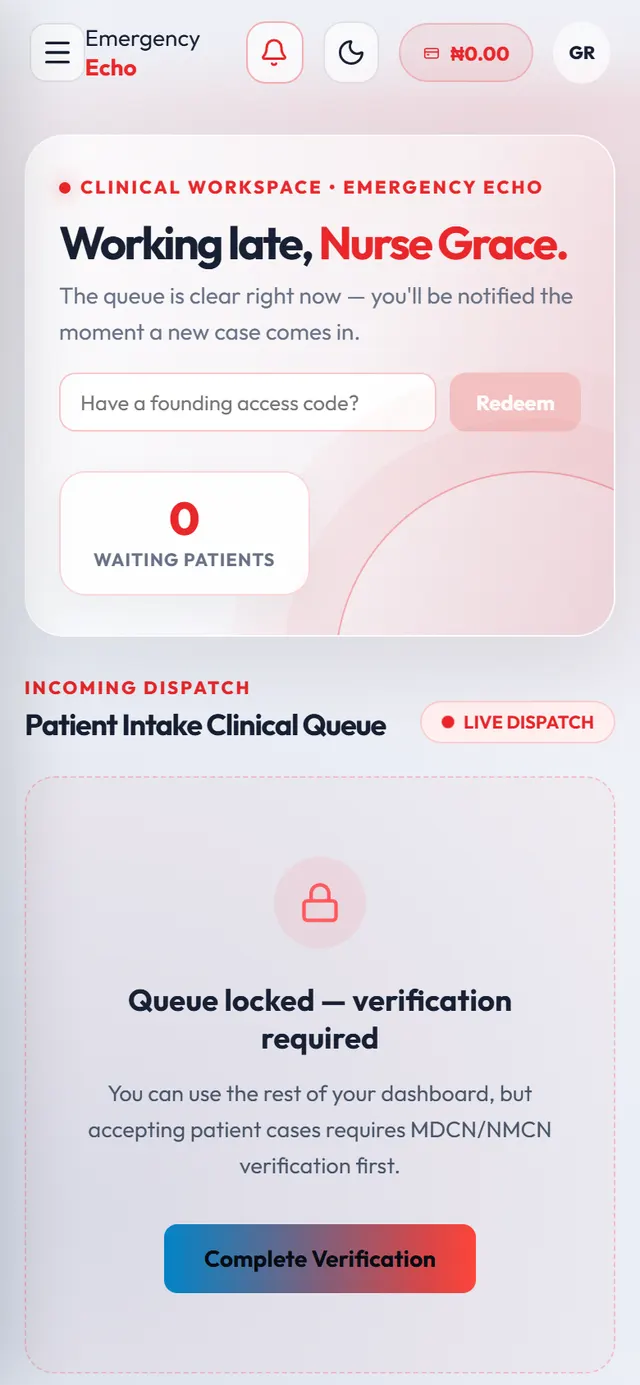
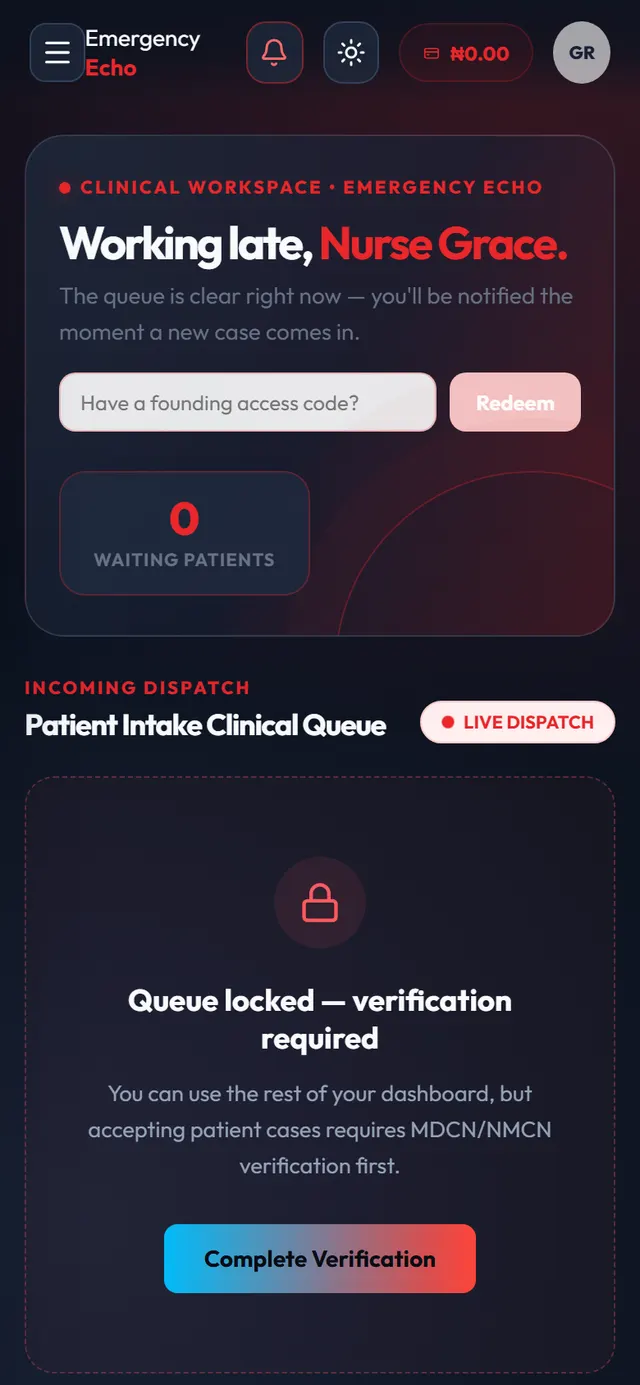
The queue stays locked until you're approved Step 7: Send your licence details and documents
- NMCN Licence Number: your qualification code, then your number, e.g. RN/220149 for nurses or RM/104233 for midwives.
- Nursing Qualification and Specialization. Pick from the lists, or choose Other and type it in.
- Years of Experience.
- Two documents: Nursing License Document (NMCN) and Nursing Degree / Certificate.
For each document, tap Choose File and pick a photo or PDF. Then tap Submit Credentials for Review.
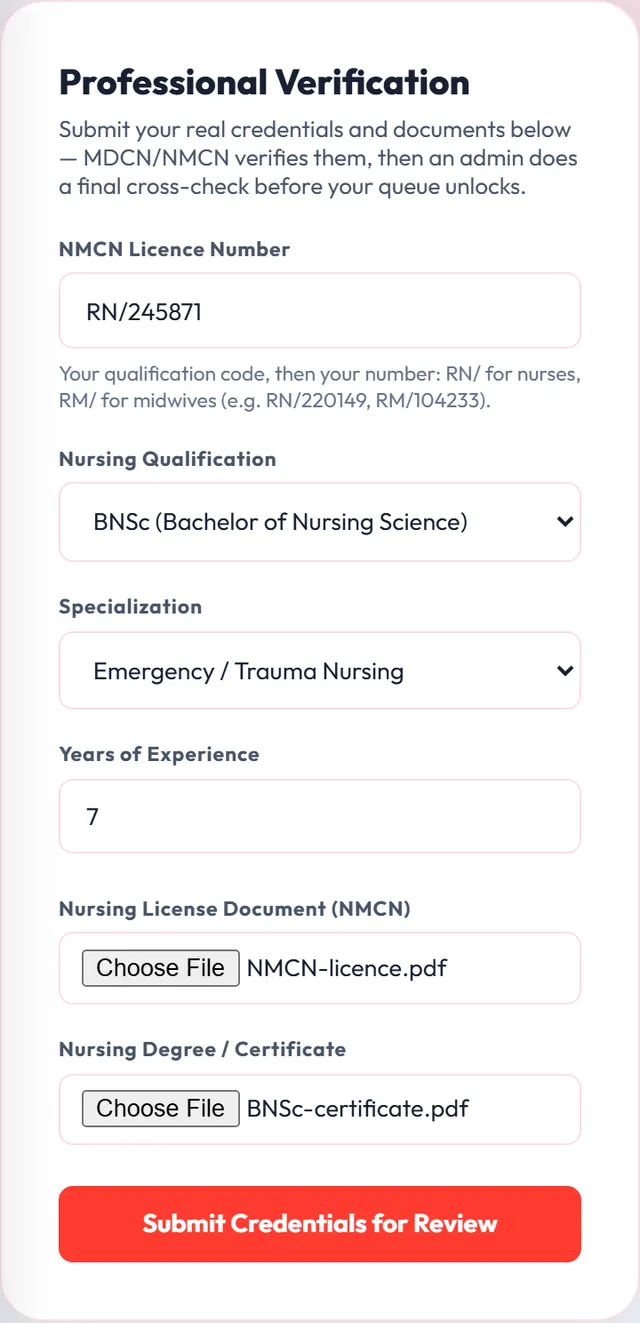
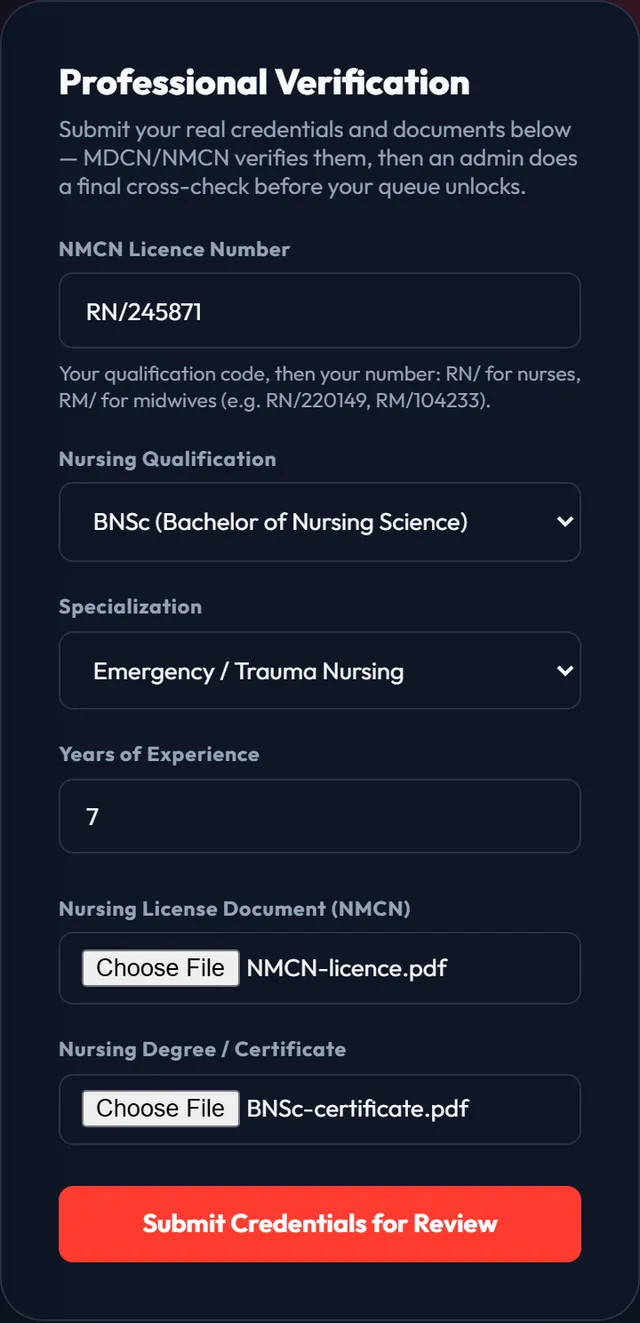
The licence form, filled inScroll inside the screen to see all of it. - Waiting for review
Step 8: Wait while your licence is checked
Your account now shows Account Pending Review. Two checks happen, in this order:
- NMCN reviewers check your registration and documents.
- An EmergencyEcho admin does a final cross-check.
You'll get an email once you're approved. You don't need to do anything else in the meantime.
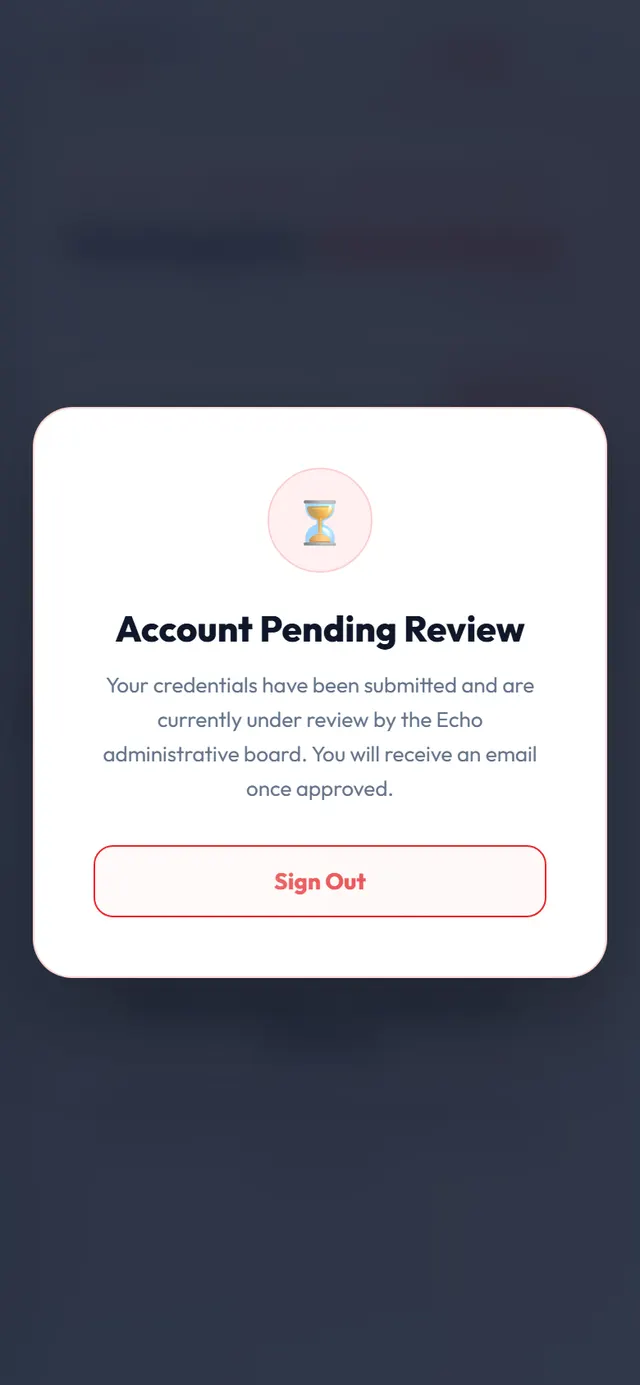
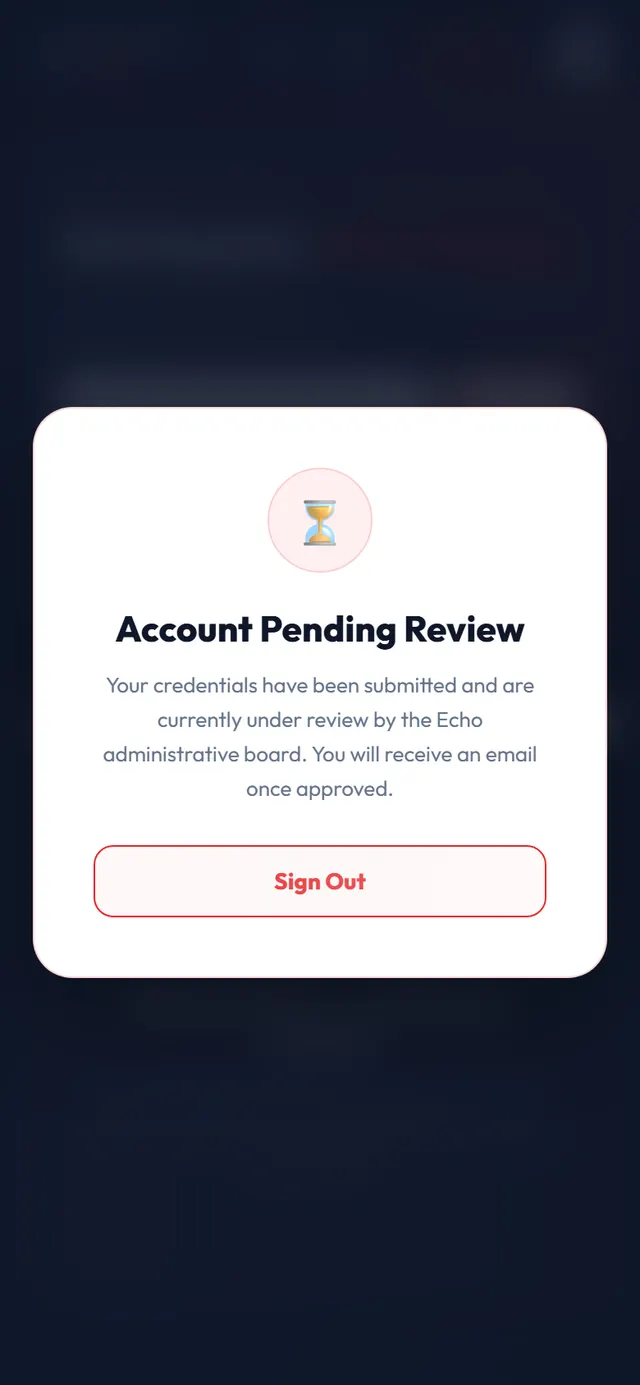
What you see while the review is in progress - Approved
Step 9: Start taking cases
Sign in again after your approval email. The queue is now open, and new patient cases appear by themselves as they come in.
Under Verification in the menu you'll see Verified by NMCN and approved. To change your details or documents later, go to Profile.
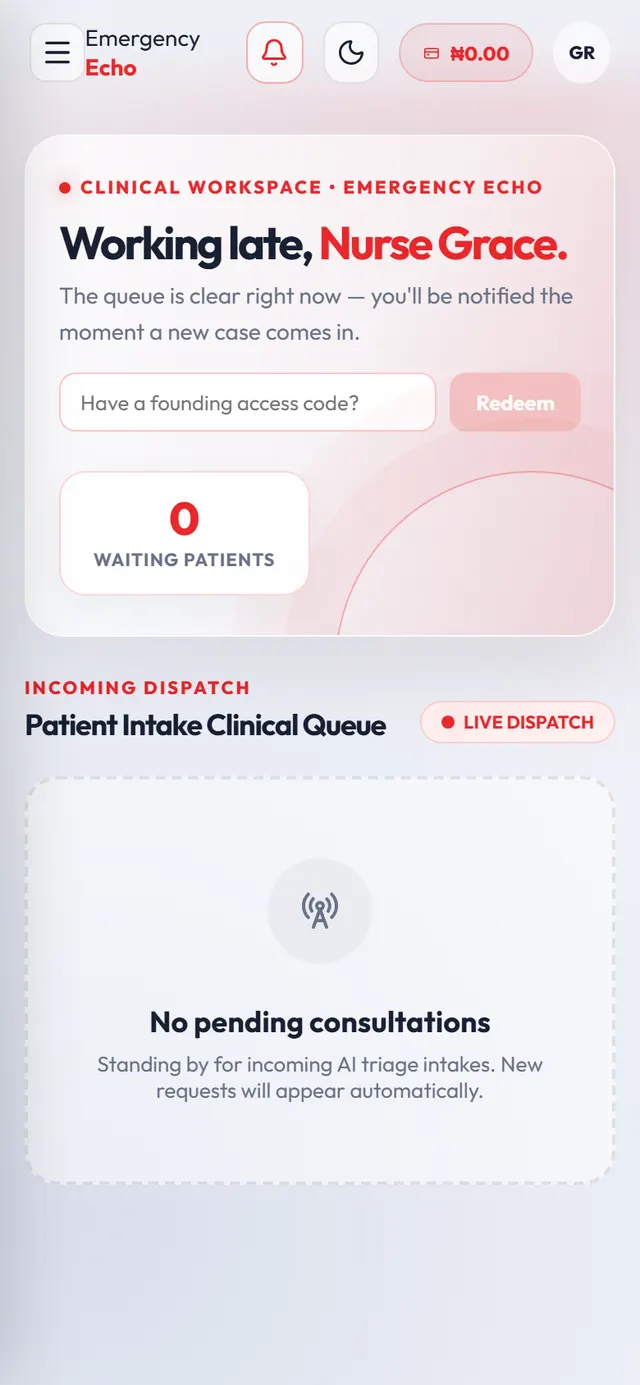
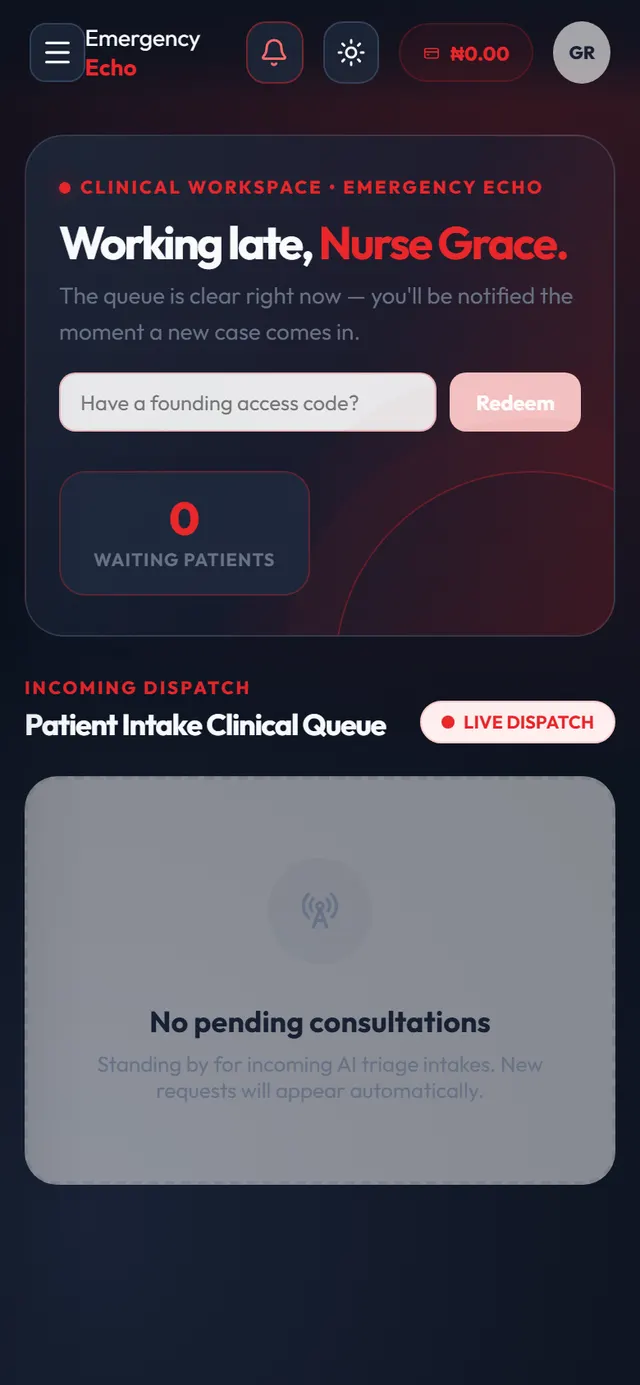
Your workspace once you're approved - Approved
Step 10: Add your bank account for payouts
Open the menu and tap Wallet & Payouts. Under Linked Bank Account, tap + Link New and add the account your earnings should go to.
Your earnings from completed consultations show here, and you withdraw them with Withdraw.
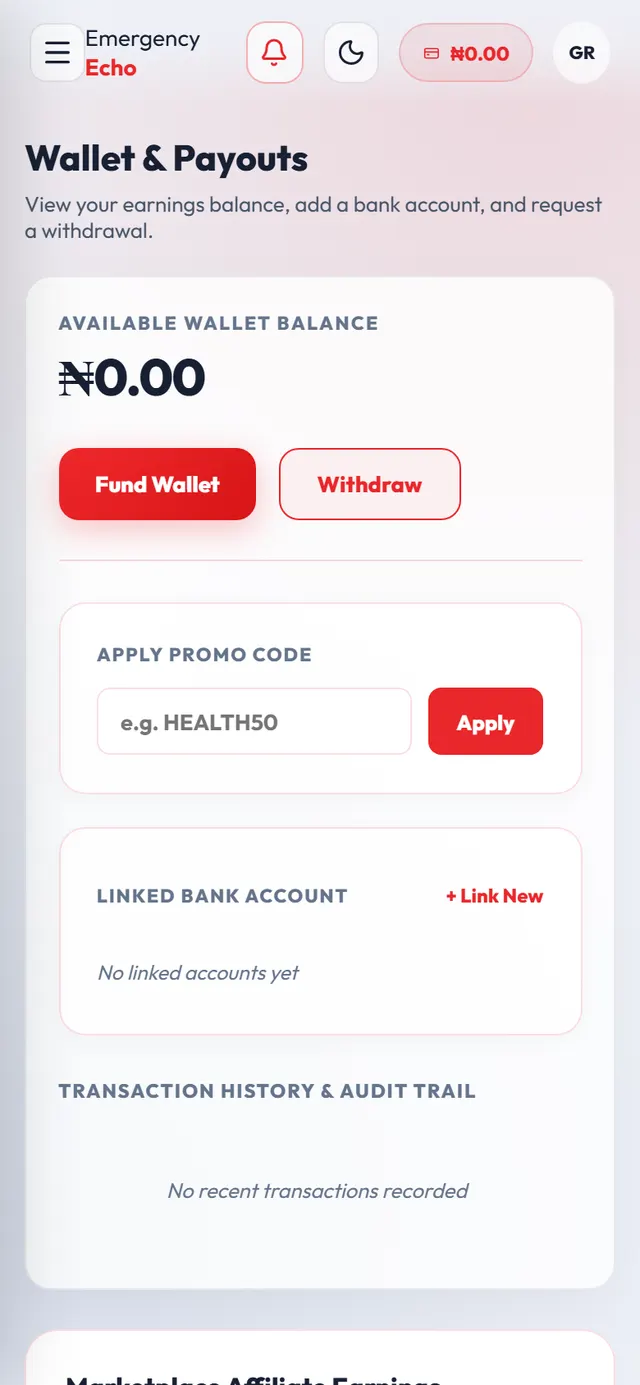
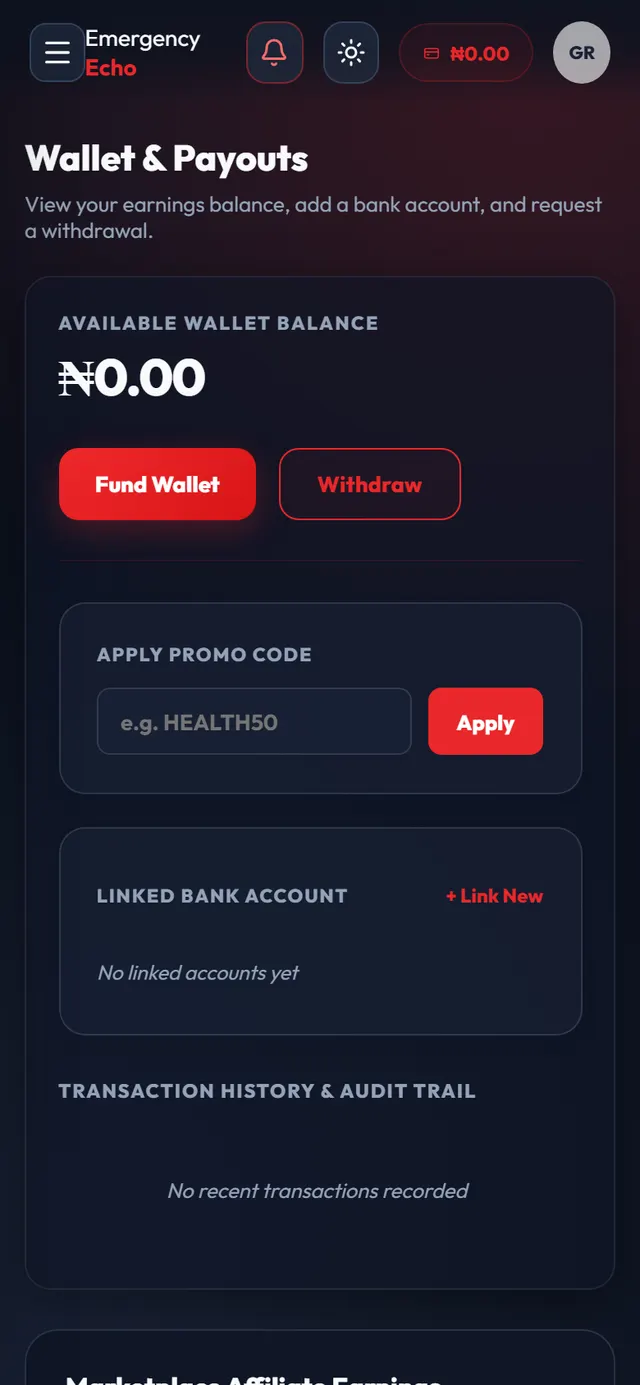
Wallet & Payouts
If something goes wrong
No email after 5 minutes
Check Spam or Promotions. Then, on the Email Verification page, confirm your email address and tap Resend Code.
A document won't upload
The message names the document and the reason. Try a smaller photo or a PDF, then submit again.
Picked the wrong role
You can't change it yourself. Email support@emergencyecho.org before you send documents.
Your licence changed after approval
Editing your Profile does not restart the review. Email support@emergencyecho.org so it can be checked again.
Screens show a sample nurse, Grace Eze, with made-up details and documents. Still stuck? Email support@emergencyecho.org.
Ready to start?
It takes a few minutes. Keep this guide open in another tab while you sign up.