
Guide for patients
How to create your EmergencyEcho account
Nine short steps take you from the website to your own care dashboard. Each step shows the screen you will see on your phone.
- Takes about 5 minutes
- You need an email and a phone number
- Open to adults 18 and over
Step 1: Open the website and tap Get started
Go to www.emergencyecho.org in your phone's browser and tap the red Get started button.
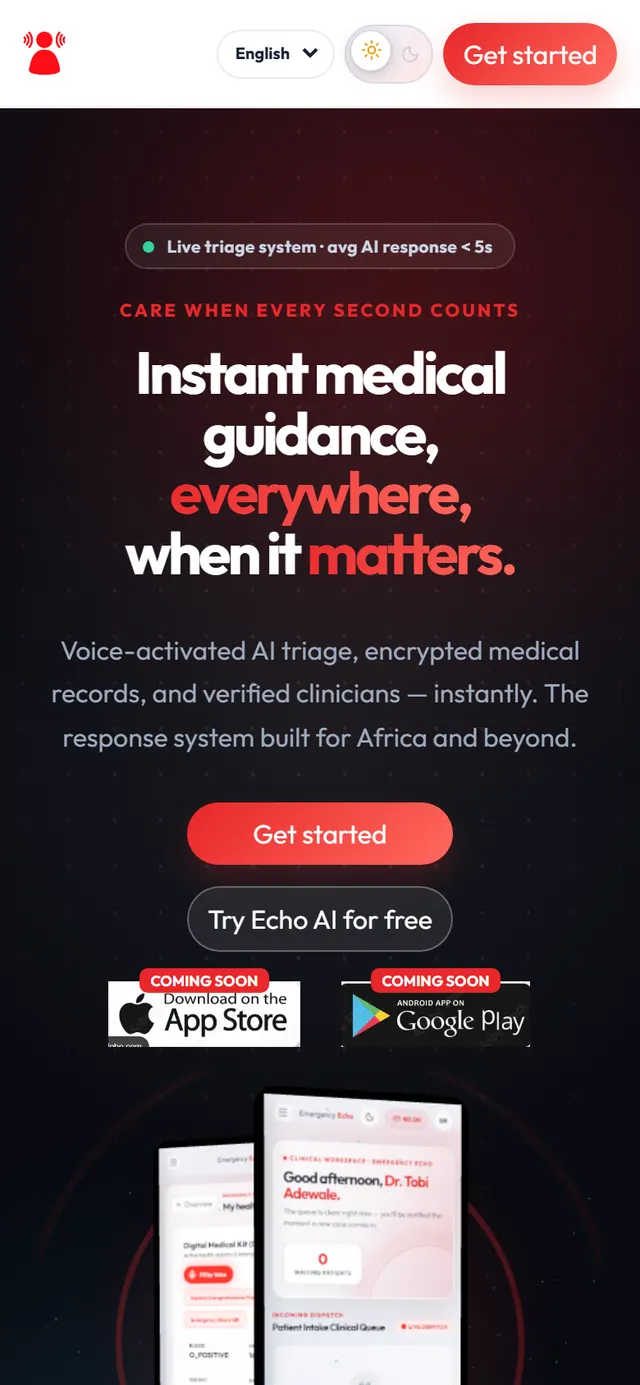
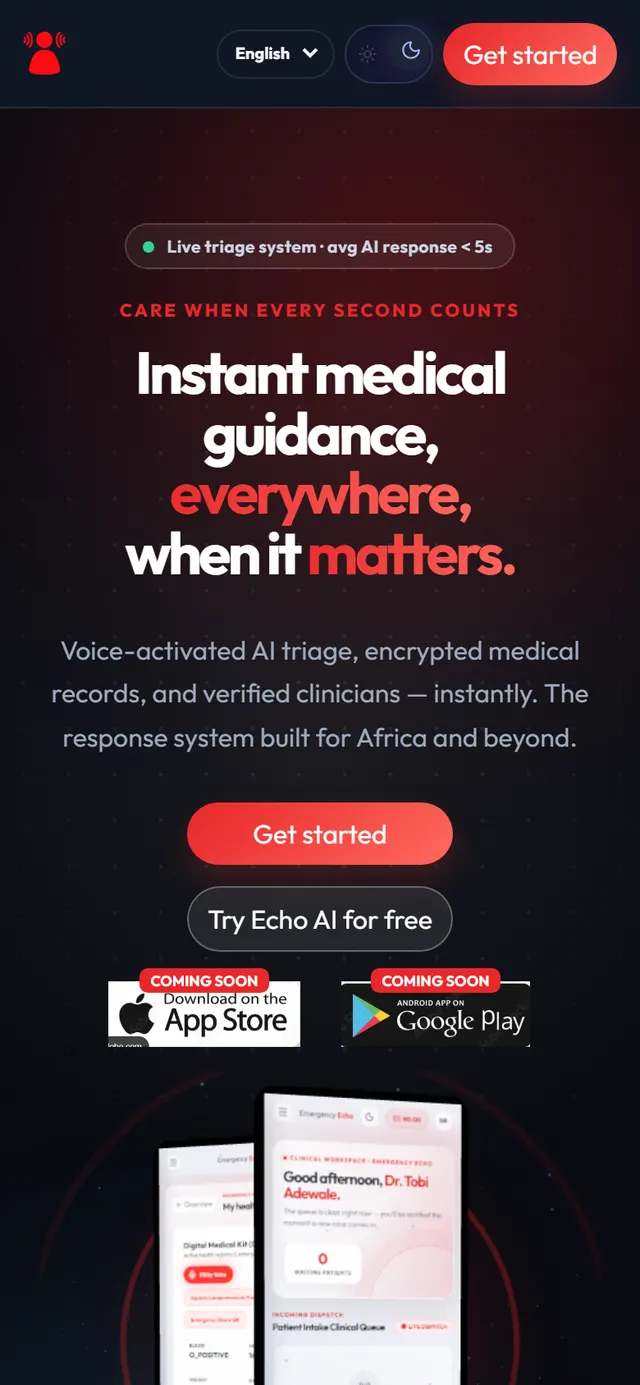
The EmergencyEcho home page Step 2: Fill in the sign-up form
- Full name as it appears on your ID.
- Username, a short name you can sign in with.
- Phone number, written as 080… or +234….
- Email address. Your code is sent here, so use one you can open now.
- Password with at least 10 characters, including a capital letter, a small letter, a number and a symbol such as # or !. Each rule turns green when it is met.
- Role: leave it on Patient.
- Date of birth. You must be 18 or older.
Tick the box to agree to the Terms and Privacy Policy, then tap Create Account.
The button stays grey until every password rule is green and the box is ticked.
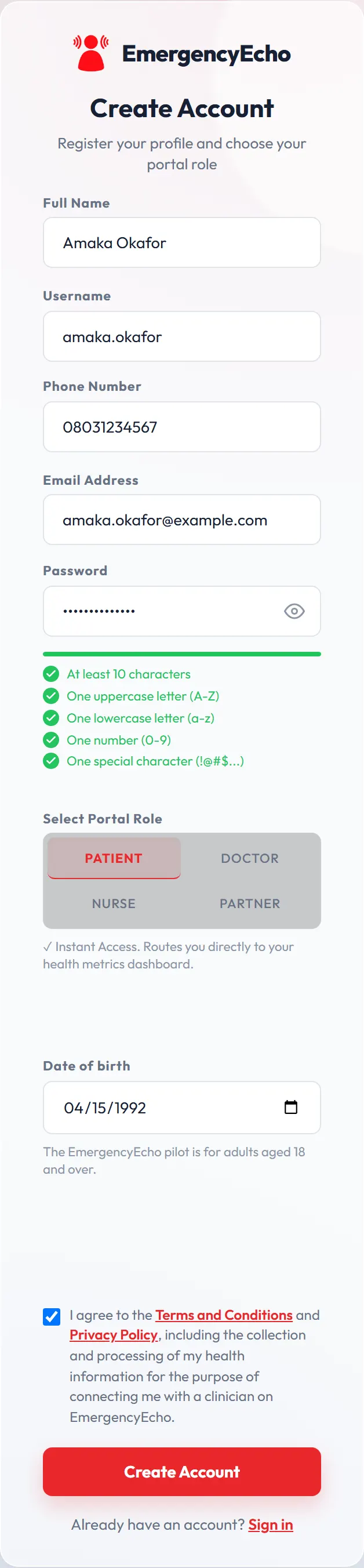
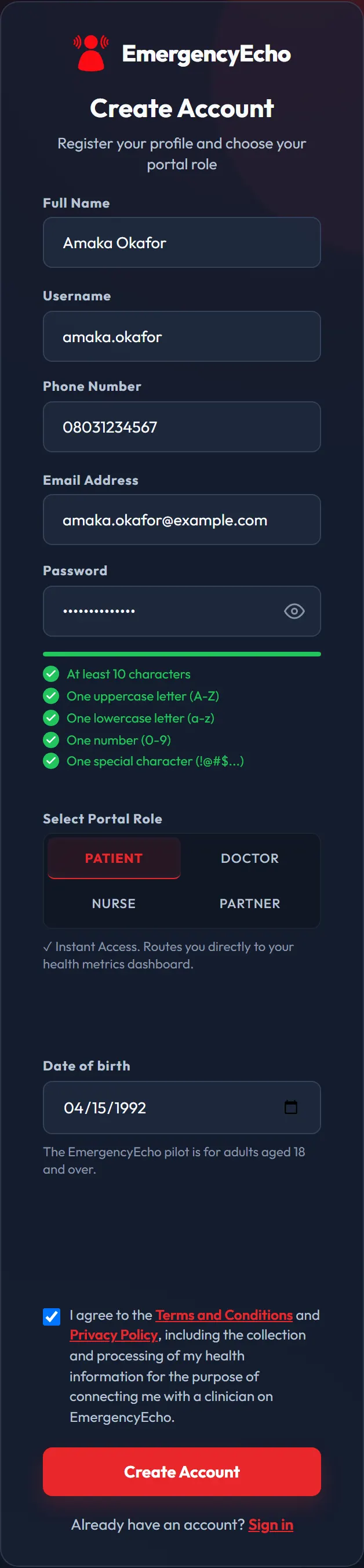
A completed sign-up formScroll inside the screen to see all of it. Step 3: Wait for your verification code
You land on the Email Verification page. Keep it open and check your email inbox on the same phone.
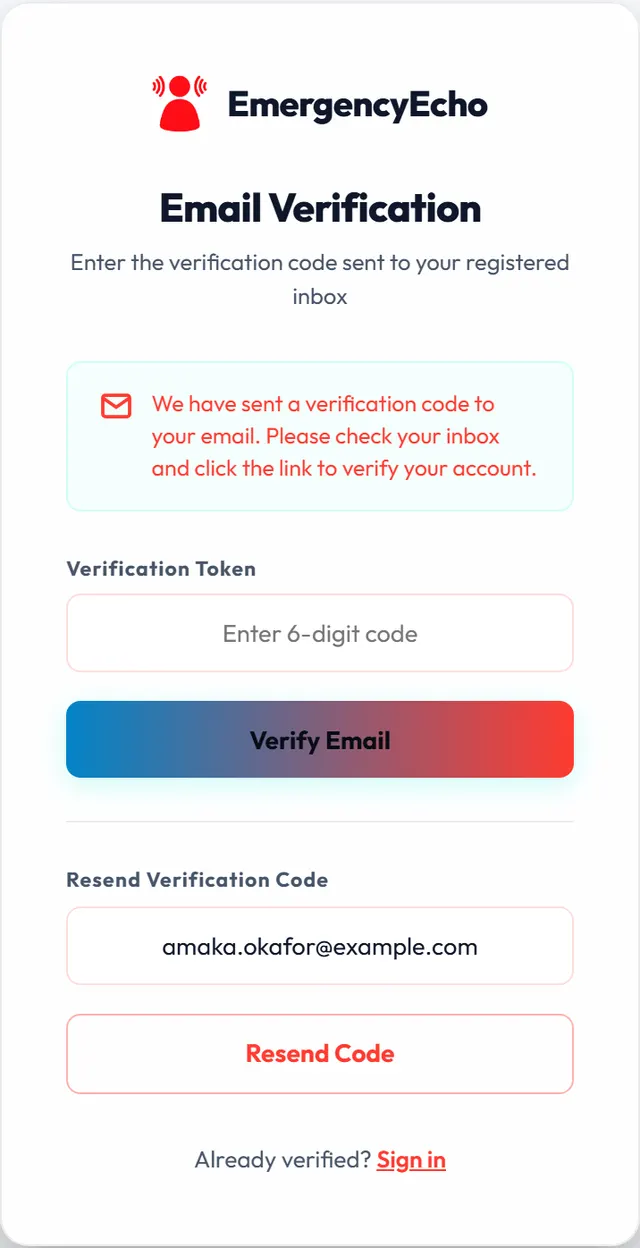
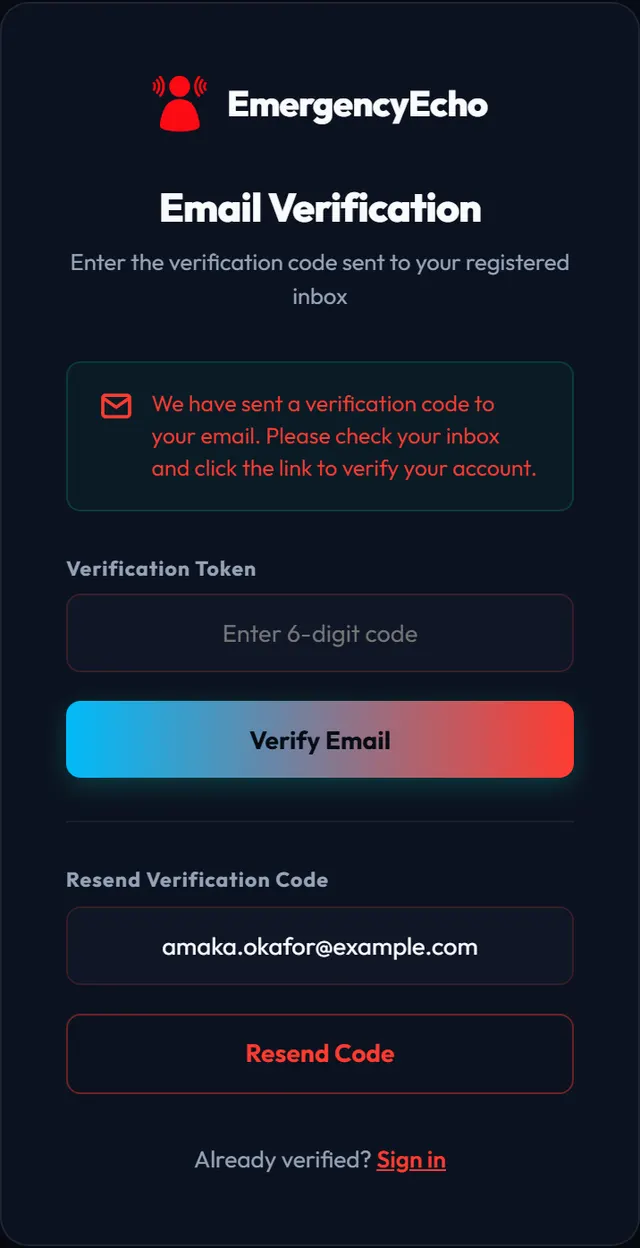
The page that asks for your code Step 4: Open the welcome email
Look for an email titled “Welcome to EmergencyEcho — verify your email”. It holds a 6-digit code that works for 24 hours.
Copy the code, or tap Verify My Email in the email to finish this step in one go.
Can't find it? Check your Spam or Promotions folder. It usually arrives within a minute.
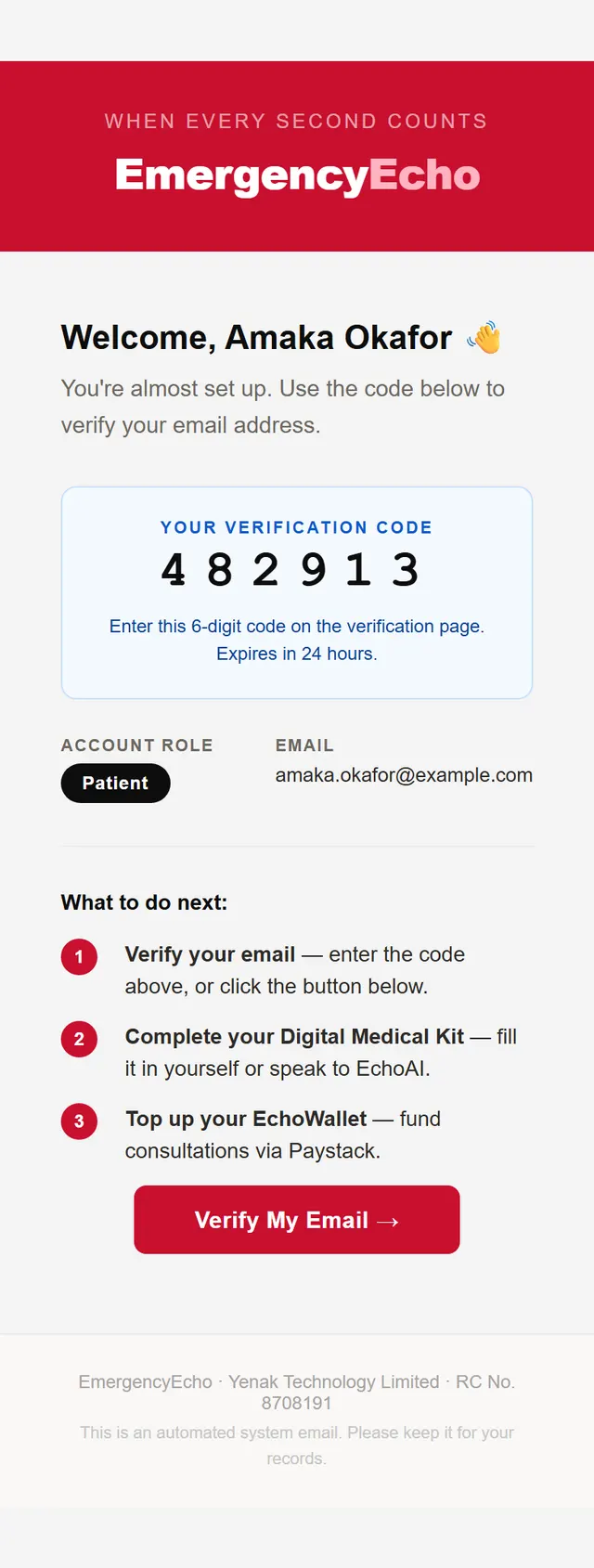
The welcome email, with a sample codeScroll inside the screen to see all of it. Step 5: Enter the code
Go back to the Email Verification page, type the 6 digits into the box and tap Verify Email.
When you see Email Verified Successfully, the page takes you to sign-in by itself after a few seconds.
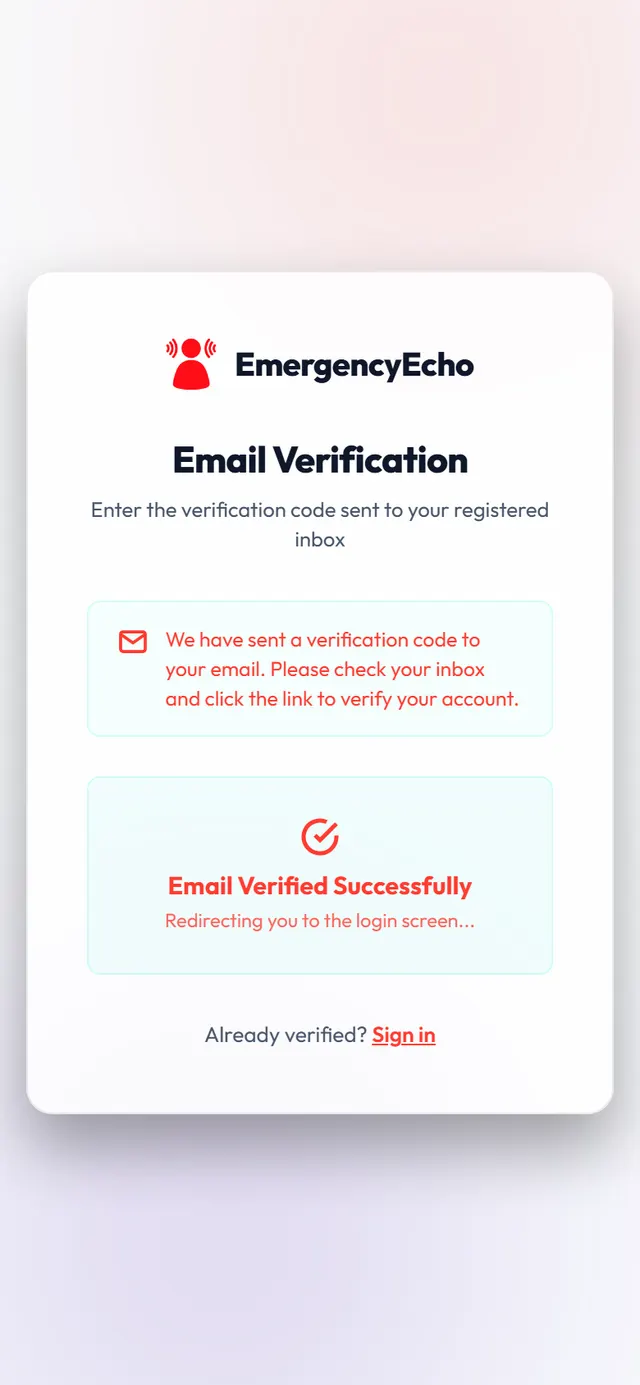
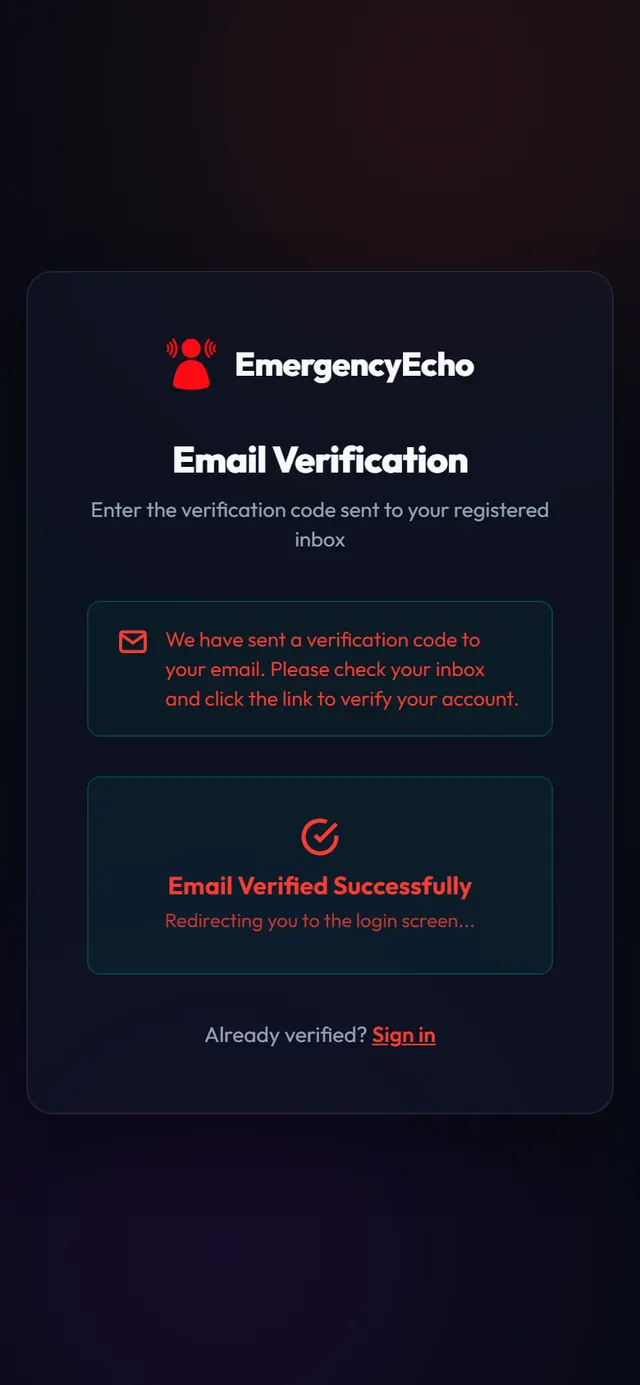
Your email is confirmed Step 6: Sign in
Type your email or username and the password you chose, then tap Sign In.
Forgot your password? Tap Forgot Password? above the password box to reset it by email.
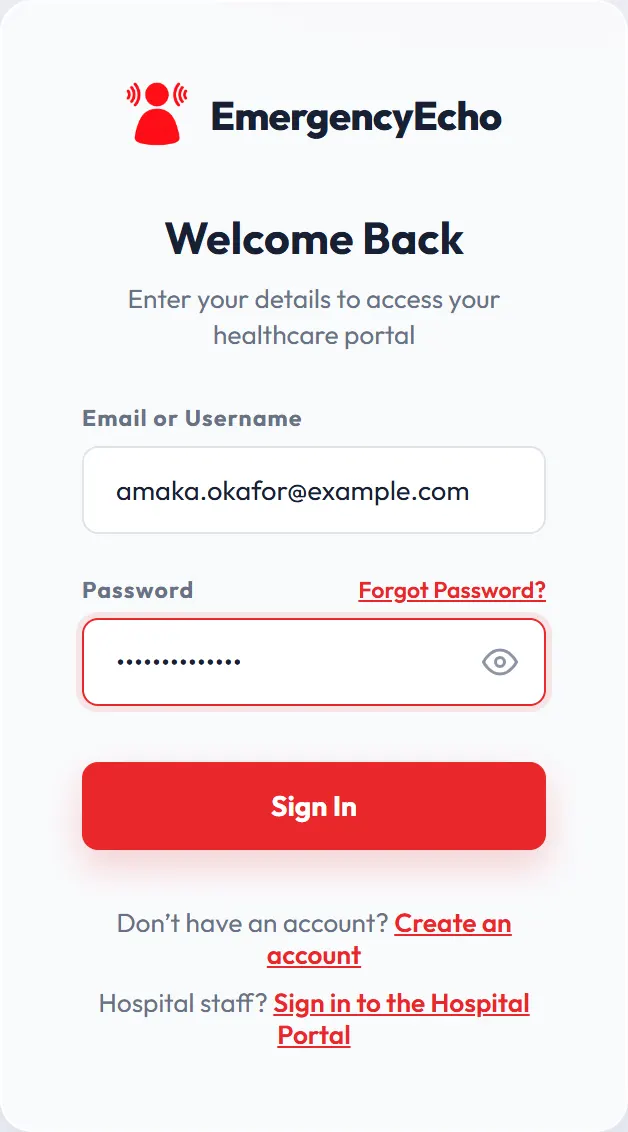
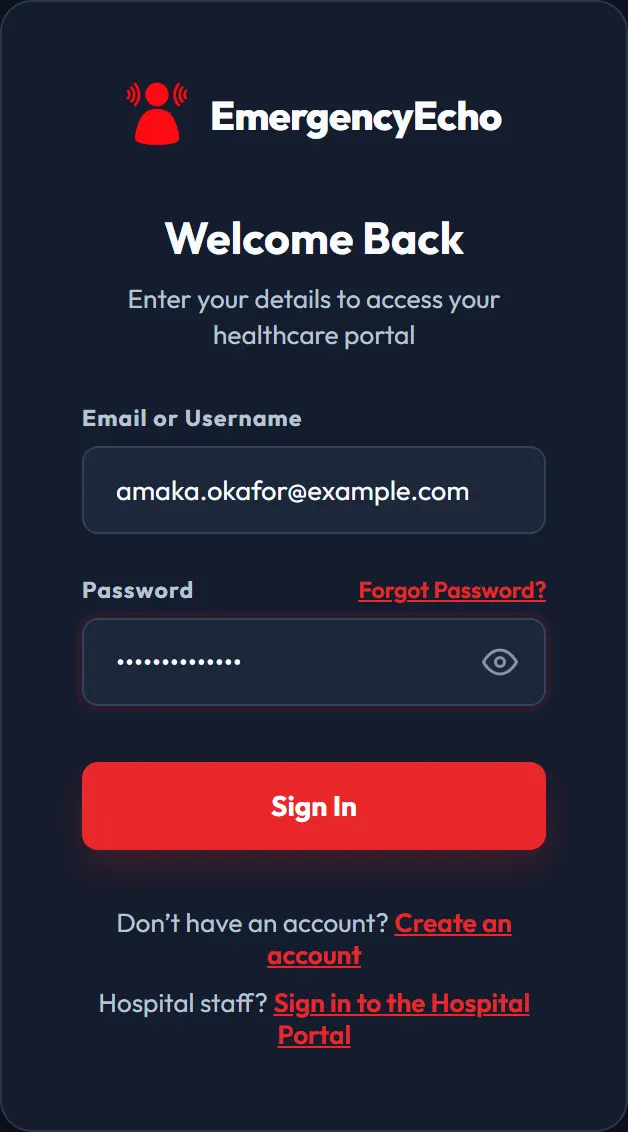
The sign-in screen Step 7: Agree to take part in the pilot
The first time you sign in, you see Before you start. It explains that EmergencyEcho is a pilot and not an emergency service, and how your health information is used.
Type your name in the box and tap Agree and continue. You only do this once.
In an emergency right now? Call 112, or tap Go to SOS to skip straight to emergency help.
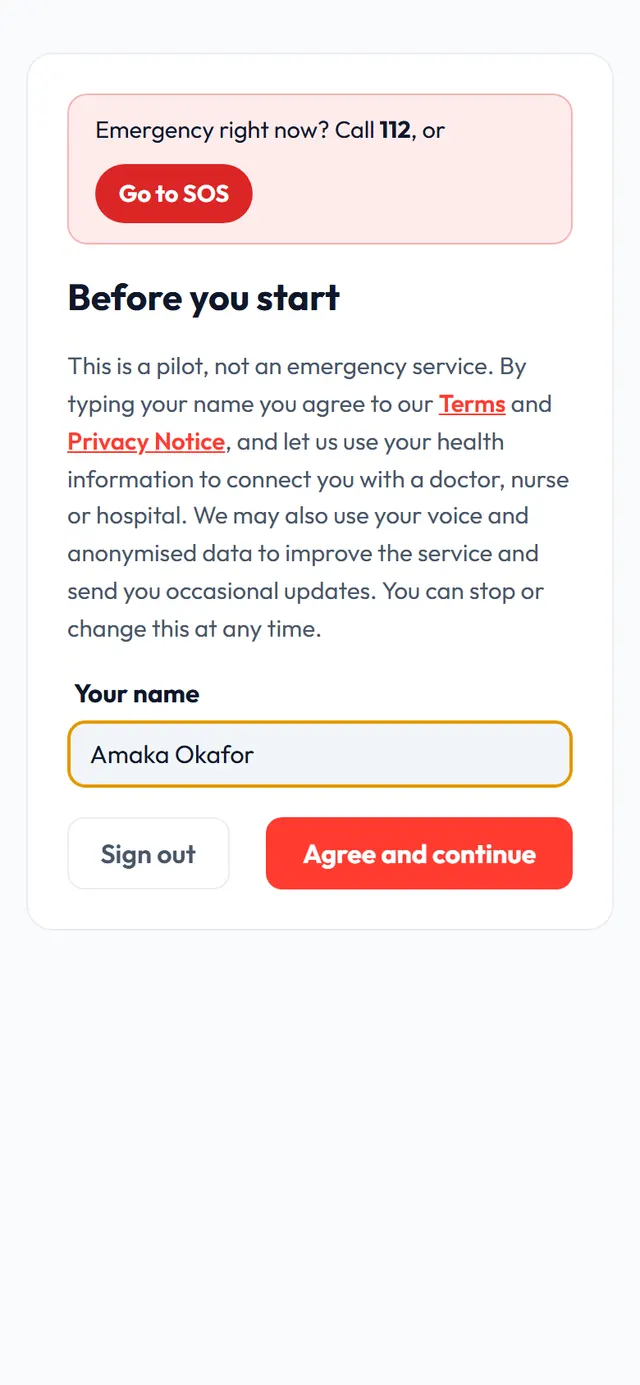
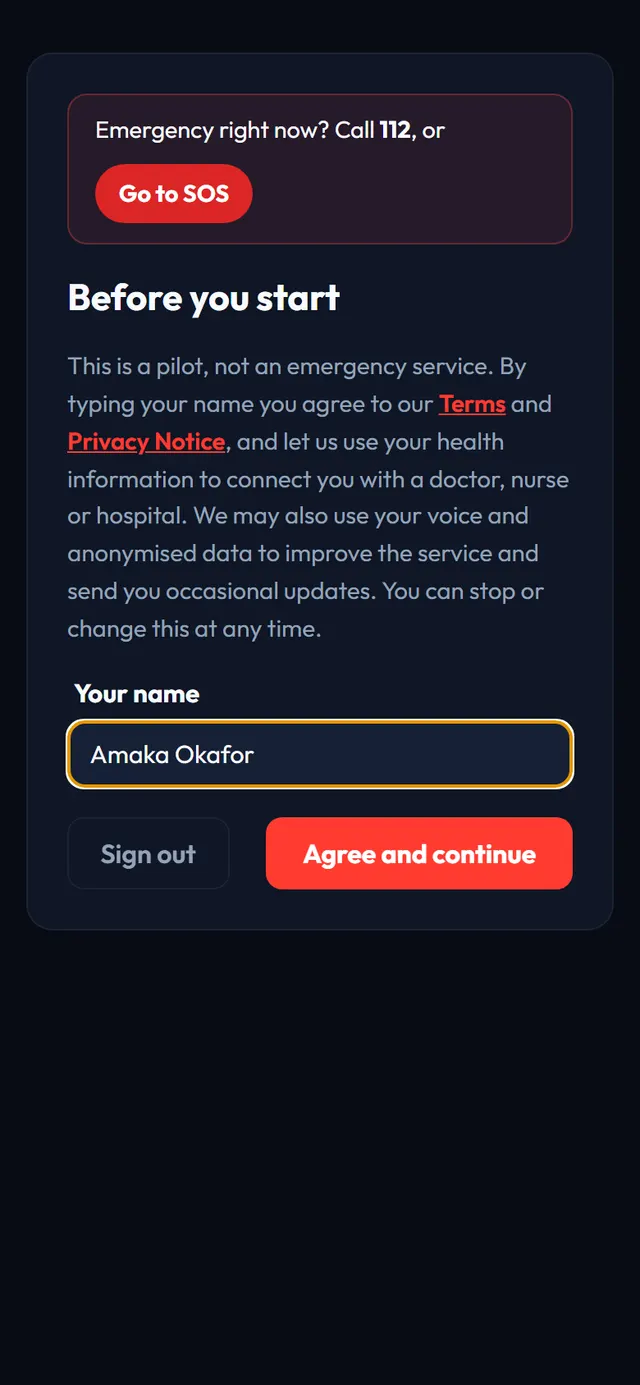
Type your name to agree Step 8: Take the short tour
A guide points to each part of the menu, such as Home, your Digital Medical Kit, Echo Wallet, Ambulance and Insurance. Tap Next to go through all 12 tips, or the × to close it.
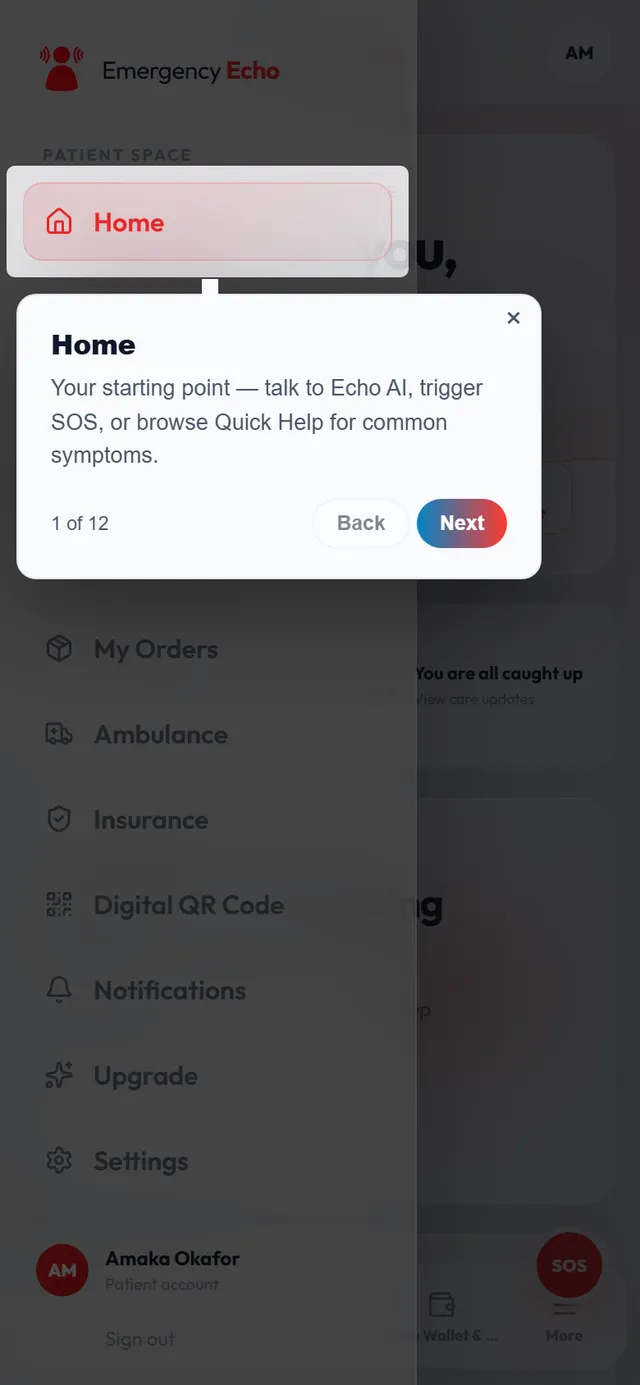
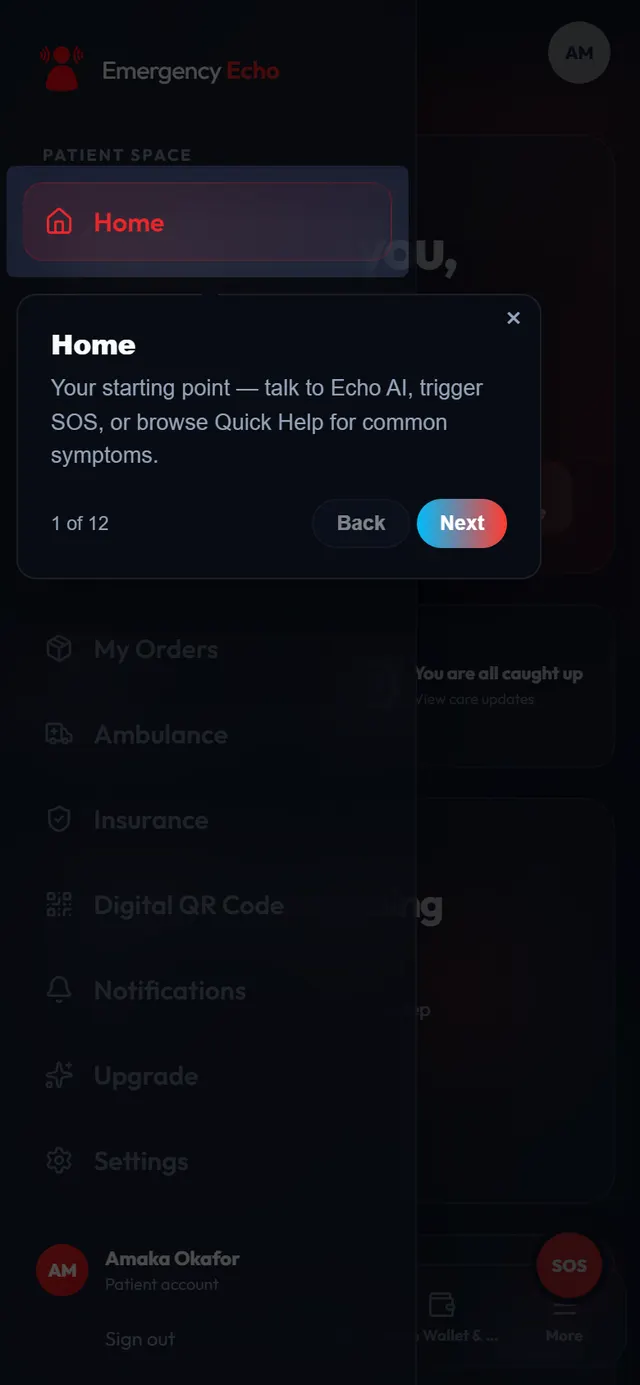
The first of 12 tour tips - Account ready
Step 9: You're in
This is your home screen. From here you can:
- Talk to Echo and describe how you feel, by voice or by tapping a symptom.
- Tap SOS or Ambulance when you need urgent help.
- Fill in your Digital Medical Kit (blood group, allergies, medicines) so clinicians can help you faster.
- Add money to your Echo Wallet before you book a doctor or nurse.
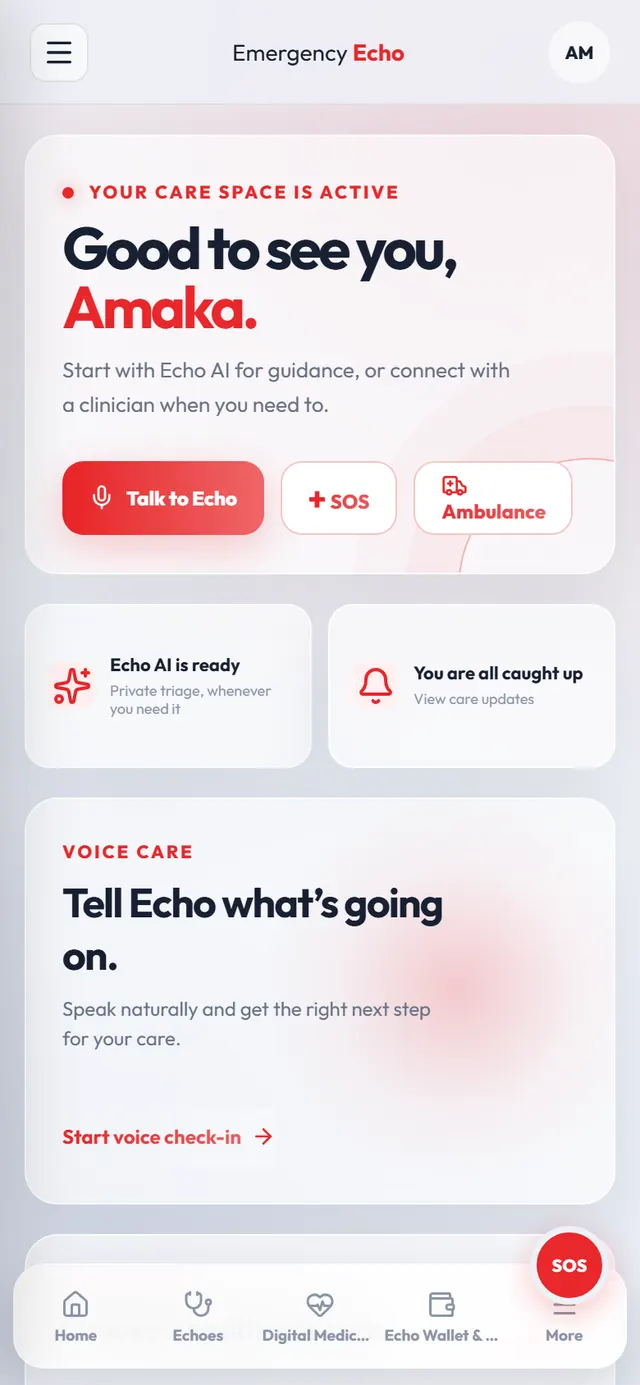
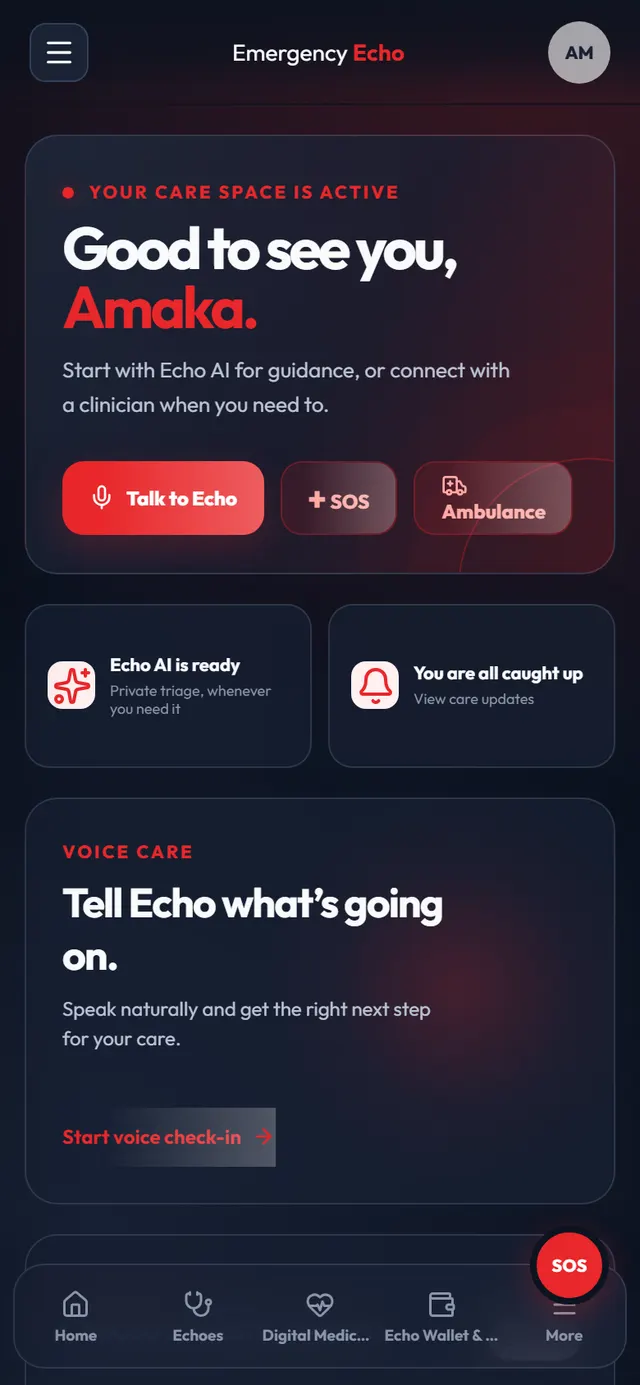
Your patient home screen
If something goes wrong
No email after 5 minutes
Check Spam or Promotions. Then, on the Email Verification page, confirm your email address and tap Resend Code.
The code doesn't work
Codes expire after 24 hours. Tap Resend Code and use the code in the newest email.
"Pilot is open to adults only"
The pilot accepts people aged 18 and over. Check that your date of birth is correct.
Email or username already taken
You may already have an account. Tap Sign in, or use Forgot Password? to get back in.
Screens show a sample patient, Amaka Okafor, with made-up details. Still stuck? Email support@emergencyecho.org.
Ready to start?
It takes a few minutes. Keep this guide open in another tab while you sign up.